
Keynote timeline templates can help you present milestones or project phases without drawing the layout from scratch. These two downloads provide a horizontal four-milestone timeline and a vertical five-phase timeline. They are editable PPTX files for import into Keynote, with native slide text, lines and milestone markers. They are not native .key files. Apple documents that Keynote can open and edit PowerPoint presentations; review the layout after importing before presenting or saving a Keynote copy.
Compare the two downloads with your actual project in mind. The previews show the supplied layout or artwork, including the prompts and demonstration elements that explain how it is organized. Choose the option that best fits a presentation of milestones or project phases, then edit a separate copy. The file descriptions below identify what is editable and what needs to be replaced before the result is ready to use.
Compare the two downloads
| Template | Download format |
|---|---|
| Horizontal Milestone Timeline | Editable PPTX for import into Keynote |
| Vertical Project Phase Timeline | Editable PPTX for import into Keynote |
Choose between milestones and phases
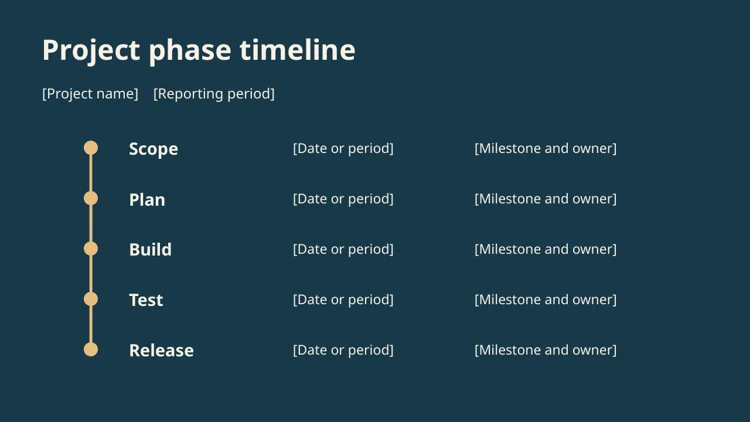
The horizontal layout works well for a short sequence of milestone events. Its four positions can represent the main decisions or outcomes a presentation needs to explain. The vertical layout has five rows, with room for a phase, a date or period and a milestone or owner. It is useful when the audience needs to scan the stages in order. Choose the structure around the message. A detailed activity schedule belongs in a planning document; a slide should show the part of the sequence the audience needs to understand.
Open the PPTX and inspect the imported slide
Open the downloaded presentation in Keynote through its file-opening process. The supplied content uses native text and simple diagram objects rather than a single flattened screenshot, so you can revise labels and reposition the markers. Importing across presentation applications can affect font substitution and text wrapping. Check every text group, the line positions and the slide size after opening. Save an editable Keynote copy if that is your working format, and keep the original PPTX as a separate starting file.
Use dates and spacing honestly
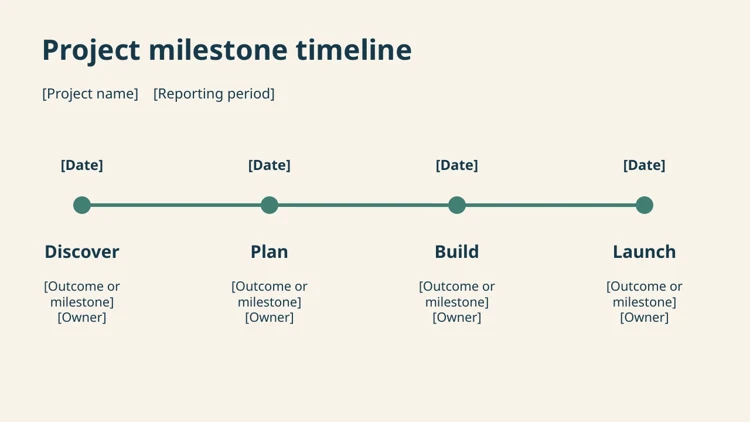
The horizontal positions are evenly spaced as a presentation layout. That spacing does not automatically represent equal durations or a measured calendar scale. Replace the date prompts with the real milestone dates and explain any important gaps. If the audience needs to compare elapsed time, adjust the geometry deliberately or use a more suitable scaled chart. The vertical rows communicate order, not time spent. Do not let a clean-looking timeline imply that a long phase and a short phase take the same amount of time.
Keep the labels concise and meaningful
A milestone should identify an outcome, decision or event. A phase label should describe a recognizable part of the work. Replace the sample terms only after deciding what the audience needs to know. Long task descriptions can make the slide harder to scan and force unnecessary small type. Keep detailed actions in the supporting plan, while the timeline names the important stages and their dates. Use the owner field only when it helps the audience understand responsibility, and define what that ownership means in the project.
Download the templates and view the previews
Horizontal Milestone Timeline
The preview shows the supplied timeline slide. The PPTX contains editable text and diagram objects for import into Keynote. Check the imported layout before presenting. Keep an original copy of the download and save your project under a separate descriptive name.
Vertical Project Phase Timeline
The preview shows the supplied timeline slide. The PPTX contains editable text and diagram objects for import into Keynote. Check the imported layout before presenting. Keep an original copy of the download and save your project under a separate descriptive name.
Details to check before using the template
- Project and reporting period
-
Replace the project name and reporting-period prompts at the top. Make the scope clear enough that the timeline can be understood outside the original conversation. A project-wide sequence and a single workstream may use similar phase names, so the heading should distinguish which one the slide represents.
- Milestone labels
-
Use short labels that identify concrete points in the work. A phrase such as design approval tells the audience more than a vague label such as progress. Keep the same level of detail across the timeline so one position does not describe an entire project while another describes a small task.
- Dates or periods
-
Enter the confirmed date, target date or reporting period and make its status clear. If a date is provisional, identify that in the wording or accompanying explanation. Do not copy an old date into a revised timeline simply because it makes the sequence look complete.
- Owners and outcomes
-
Use the supporting field to identify the relevant outcome or responsible person. Keep ownership consistent with the project plan. When several teams contribute, a single name on the slide should indicate the agreed coordination role rather than implying that one person performs all of the work.
- Slide objects and alignment
-
Edit the text in place and move connected diagram elements together when you change the arrangement. Check the spacing between labels and markers after adding longer wording. Preserve the visual order of the sequence and avoid leaving a marker behind when its label moves.
- Import and export review
-
Inspect the slide in the application you will use to present it. Check fonts, wrapping and object positions after importing or exporting. Keep the editable working copy and the distribution copy separate. If you share a PDF, remember that it presents a fixed layout rather than the editable timeline objects.
A practical example
A project update can use the horizontal version to show discovery completion, plan approval, build completion and launch readiness. The vertical version can show scope, planning, build, test and release, with a date and owner on each row. Replace those sample stages with the real sequence and explain whether the dates are targets or confirmed commitments.
How to prepare the finished version
- Keep an original PPTX copy. Download the chosen timeline and keep the original PPTX separate from your working presentation. Open it in Keynote and inspect the imported slide. The files contain editable objects, but that does not mean every application will use the same font metrics. Check the title, labels and marker positions before adding the slide to a larger deck.
- Replace labels before changing the layout. Write the actual phase or milestone names and dates first. Keep the supporting text concise enough for a presentation. If a label needs more explanation, put the detail in a supporting slide or plan rather than crowding the timeline. Use consistent date wording and identify whether the dates are targets, confirmed events or reporting periods.
- Move related objects together. When adjusting a marker, check the related label and date at the same time. Preserve the intended order and alignment of the diagram. A timeline can look tidy while a date has become detached from the milestone it describes. Review each position from left to right or top to bottom and make sure the visual relationship is still clear.
- Inspect the final presentation output. Save the working Keynote copy and review the slide in presentation mode. If you export to PPTX or PDF, inspect that output as well. Confirm that long labels have not wrapped into nearby content and that the slide remains readable at the viewing size. Keep the editable source and the version intended for sharing clearly identified.
A final project review
Before presenting a timeline, decide what response the audience should be able to give after viewing it. They may need to understand the next decision, the order of delivery or who owns a milestone. Read the slide without the accompanying narration and check whether that information is visible. Remove labels that repeat the title without adding meaning, and make provisional dates understandable. If the slide changes during a project review, update the supporting plan as well so the presentation does not become a separate source of conflicting dates. Keep a dated copy of the version used for an important discussion.
Why use a timeline in Keynote
A timeline turns a list of dates into a story that an audience can follow at a glance. In a presentation, it answers simple but important questions: what happens first, what depends on what, and when the key milestones arrive. Keynote is a natural home for timelines because its clean layouts, smooth builds and Magic Move transitions let you reveal milestones one at a time instead of overwhelming people with a dense slide.
These keynote timeline templates are supplied as editable PPTX files, which Keynote opens directly. That makes them easy to share with colleagues who use PowerPoint, while still letting Mac users edit, animate and present in Keynote. One template uses a horizontal milestone layout; the other uses vertical phases, which suit longer descriptions and portrait-style slides.
What the two layouts are best for
Horizontal milestone timeline
A single line runs across the slide with markers for each milestone, labels above and below, and dates aligned to the line. It is ideal for product launches, event countdowns, company history slides and quarterly roadmaps where you want the audience to see the whole span at once. It works best with roughly five to eight milestones; beyond that, labels get crowded.
Vertical phase timeline
Phases stack from top to bottom, each with a heading, date range, short description and owner. This layout is better when each stage needs explanation, such as research, design, build, test and launch phases in a project, or term-by-term plans in a school or training program. It also adapts well to handouts and reports exported to PDF.
How to open and edit the PPTX files in Keynote step by step
- Download and open. In Keynote, choose File, then Open, and select the PPTX file. Keynote converts it into a Keynote presentation.
- Check fonts. If Keynote reports missing fonts, replace them with a font installed on your Mac so text does not shift.
- Save as Keynote. Save a copy in Keynote format so your changes and animations are preserved.
- Edit milestones. Double-click each label to replace the sample text with your own dates and milestone names.
- Adjust spacing. Select the markers and use Arrange, then Distribute Horizontally or Vertically, to keep gaps even.
- Recolor. Use the Format panel to apply your brand colors to the line, markers and phase blocks.
- Add owners. Add names or team labels beneath each milestone or phase so responsibility is clear.
- Animate. Use Build In effects to reveal milestones in order, or duplicate the slide and use Magic Move to zoom between phases.
- Export if needed. Export back to PPTX for PowerPoint users or to PDF for handouts.
When to use a timeline slide
Use a timeline whenever sequence matters more than detail. Common situations include project kickoff meetings, investor pitches showing a product roadmap, board updates on progress against milestones, onboarding sessions explaining a company’s history, event planning briefings, academic presentations on historical periods, and training sessions that outline a course schedule. If the audience needs to know exact tasks and dependencies, pair the timeline with a separate project plan rather than squeezing everything onto one slide.
Types of presentation timelines
Roadmap timeline
Shows planned features or initiatives by quarter or month. Dates may be approximate, so label them as targets.
Historical timeline
Presents past events in order, such as company milestones or historical periods.
Project phase timeline
Breaks work into stages with date ranges and owners, matching the vertical template.
Countdown timeline
Works backward from a fixed date, such as a launch or conference, highlighting deadlines.
Comparison timeline
Places two tracks side by side, for example planned versus actual dates.
Tips for clear timeline slides
- Keep milestone labels to a few words; explain detail verbally or in notes.
- Use one accent color to highlight the current stage or the most important milestone.
- Align dates consistently, either all above or all below the line.
- Use the same date format throughout, such as “Mar 2026” or “Q1 2026”.
- Leave white space at both ends so the timeline does not touch slide edges.
- Add presenter notes with the details you plan to say for each milestone.
- Test animations in Play mode to make sure builds appear in the correct order.
Common mistakes to avoid
- Too many milestones on one slide. Split long timelines across several slides or zoom in on one phase.
- Uneven spacing that implies wrong durations. If spacing suggests time, keep it proportional; if not, keep it equal and rely on labels.
- Inconsistent fonts after conversion. Always check text after opening a PPTX in Keynote.
- No owners or status. Stakeholders often want to know who is responsible and whether a milestone is on track.
- Unreadable colors. Light text on light phase blocks can disappear on projectors.
Worked example: a product launch roadmap
A small software team needs to present a six-month launch plan to its leadership group. The product manager opens the horizontal template in Keynote and sets six milestones: discovery complete in January, design sign-off in February, beta release in March, user testing in April, marketing launch in May and general availability in June. The current milestone is highlighted in the brand’s accent color, and each marker builds in on click.
For the second slide, she uses the vertical template to explain the beta and testing phases in more detail, adding owners for engineering, design and support. She keeps the full task list in a project outline, reports progress each fortnight with a status report, and includes a slide from an organizational chart so leaders can see which teams own each phase. After the meeting, she exports the deck to PDF and attaches it to the follow-up email.
Keeping timelines up to date
Timelines quickly go stale when plans change. Keep a single master file, date each version in the file name, and update milestones after every planning meeting. Mark completed milestones with a check or a muted color so the audience instantly sees progress. If a milestone moves, show the original date crossed out next to the new date during review meetings; this builds trust that the roadmap reflects reality.
Using timelines beyond presentations
The same slides can be exported as images for internal wikis, newsletters or a company profile. The vertical phase layout also prints well as a one-page plan for team walls or onboarding packs. For day-to-day scheduling, many teams pair a high-level timeline with a daily planner or task tracker that holds the details.
Designing for different audiences
The same timeline can be pitched very differently depending on who is watching. Executives usually want the big picture: a handful of milestones, the current status and any risks to the end date. Project teams need more detail, such as phase boundaries, handovers and owners. Clients and customers care most about when they will see results and what they need to provide along the way.
Before presenting, decide which audience you are serving and trim the slide accordingly. You can keep a detailed version as a backup slide at the end of the deck and jump to it if someone asks a question. In Keynote, hyperlinks from a milestone marker to a backup slide make this smooth during a live presentation.
Accessibility and readability
Make sure text on the timeline is large enough to read from the back of a room, generally no smaller than the body text on your other slides. Do not rely on color alone to show status; add a word such as “Done” or “At risk” or use icons. Check contrast between text and phase blocks, and keep animations short so viewers are not left waiting. If you share the deck afterwards, add alt descriptions to timeline images and include a simple text list of milestones in the presenter notes.
Keynote timeline template FAQs
Can Keynote open PPTX timeline templates?
Yes. Keynote imports PPTX files. Check fonts and animations after opening, then save as a Keynote file.
Will animations transfer from PowerPoint?
Basic entrance animations usually transfer, but some effects may change. Review builds in Keynote and adjust if needed.
How many milestones should a timeline include?
For clarity, around five to eight on a horizontal slide. Use extra slides or the vertical layout for more.
Can I change the timeline to show quarters instead of months?
Yes. Edit the date labels and adjust spacing to reflect the period you need.
How do I share the timeline with PowerPoint users?
Export from Keynote to PPTX, then check it in PowerPoint or ask a colleague to review it.
Can I print the timeline?
Yes. Export to PDF and print; the vertical layout is particularly good for handouts.
Conclusion
A good timeline helps any audience understand where a project, product or story is heading. These keynote timeline templates give you a horizontal milestone layout and a vertical phase layout in editable PPTX format, ready to open in Keynote, customize and animate. Download them below and explore more planning resources in the category archive. Start with a draft today and refine it as the plan develops.
Related resources
For related planning and supporting information, explore Free Daily Planner Templates and Scheduling Example, Organizational Chart Templates and Editing Guide, Memo Templates and Business Memorandum Example. Choose the resource that matches the next step and keep the information consistent with your current project.
Official format guidance
Apple Keynote opening guide provides additional application guidance for the file workflow described above.
Frequently asked questions
Are the downloads native .key files?
No. They are PPTX files intended for import into Keynote. Apple supports opening PowerPoint presentations in Keynote; check the layout after import and save a Keynote copy if needed.
Can I edit the text and milestone markers?
Yes. The slides use native text and diagram objects. They are not flattened timeline images.
Does the line show time to scale?
No. The supplied positions are a presentation layout. Adjust the geometry or use a suitable scaled chart if elapsed time needs to be represented accurately.