
A4 mockup templates help you present a page design in context instead of showing only a flat screenshot. These two downloads provide a portrait stationery scene and a desk stationery scene, with editable SVG artwork and PNG images. They are vector presentation scenes, not layered Photoshop PSD mockups. Use the source to adapt the page area, surrounding colors and decorative objects, then export a presentation image for review.
Choose the option that is closest to presenting letterheads, stationery or other page artwork, then work through the editing guidance below. The previews show the supplied designs, including sample wording or field labels. They help you compare the layouts before downloading; the finished result will depend on the information and adjustments you add. Keep the original download as a starting copy and save your project under a separate name.
Compare the two downloads
| Download | Format | Starting point |
|---|---|---|
| Portrait Stationery Scene | Editable SVG and print PNG | Option 1: compare the preview and adapt the layout to your purpose. |
| Desk Stationery Scene | Editable SVG and print PNG | Option 2: compare the preview and adapt the layout to your purpose. |
Know what this mockup can and cannot do
The downloads contain SVG presentation scenes with a stylized page, shadows and desk objects. They do not contain Photoshop smart objects, linked artwork automation or a photographic paper texture. You can edit the vector shapes and replace or redraw the page content in a compatible editor. If you need an automated PSD workflow, these files are not a substitute. For a simple brand presentation, however, an editable vector scene can be useful because the colors, placement and output size remain under your control.
Keep the artwork proportionate
An A4 page has a 210 by 297 millimeter proportion. A perspective scene changes how that rectangle appears to the eye, but it should not justify stretching a logo or distorting the original design arbitrarily. Prepare the flat artwork first, then fit it into the visible page area using a suitable transform or clipping workflow in your editor. If a transformation makes text difficult to inspect, use the mockup only for overall presentation and provide a separate flat view for detailed review. Keep an untouched copy of the original artwork.
Use the scene to support a decision
Choose props and colors that help the viewer understand the project. A clean page on a calm background can communicate a stationery concept without distracting from it. Too many decorative objects may make a small logo or page title harder to find. Present one clear scene with a short label explaining the item and version. For a client review, ask for feedback on the design elements visible in the mockup, and direct production questions to the flat proof. The mockup is a communication aid, not a print-ready page file.
What to include and check
- Artwork placement
-
Identify the page area before importing your design. Keep the artwork on its own layer or group so it can be replaced without moving the surrounding objects. Use the scene as a starting point and remove decorative placeholder lines that would otherwise appear over the real design.
- A4 aspect ratio
-
Preserve the original page proportions when preparing the flat artwork. If the scene uses perspective, transform the page consistently rather than resizing individual logo or text elements separately. Keep a flat reference alongside the scene so you can compare the original with the presentation.
- Perspective and alignment
-
Align the artwork to the visible page edges and check all four corners. A small mismatch can make a professional design appear pasted on top of the scene. Use a restrained perspective and verify that the main branding remains recognizable at the final display size.
- Paper and shadow treatment
-
Adjust shadows to explain where the page sits, not to create a dramatic effect that conceals details. Keep the paper color compatible with the artwork. A dark shadow can falsely suggest a heavy fold or border that is not part of the intended printed design.
- Background and props
-
Choose background colors and props that support the brand presentation. Remove objects that compete with the page or imply a product not being supplied. Leave a little space around the stationery so the viewer can understand the full composition without a cramped crop.
- Export size and labeling
-
Export the mockup at a suitable presentation size and label it clearly. Keep the editable scene, the flattened mockup image and the actual print artwork as separate files. A reviewer should be able to tell which file shows the concept and which file is used for production.
A practical example
A designer presenting a letterhead can prepare a flat proof with the exact contact information and a separate mockup image that shows how the page might look on a desk. The flat proof is used to inspect spelling and alignment. The mockup gives the client a visual impression of the stationery system. Label the mockup as a presentation image and keep it separate from the print file, because a perspective scene does not communicate precise trim size or production settings.
Separate design approval from production approval
A mockup can help a client judge the overall identity, visual balance and use of color. It is less suitable for checking tiny contact details, exact margins or print dimensions. Provide a flat proof alongside the scene and explain what feedback you need on each file. If the client requests a change to the letterhead, update the original artwork first and then refresh the mockup. Editing the mockup alone can create a mismatch between the approved presentation and the file that eventually reaches the printer.
Use a restrained perspective
Perspective adds context, but an extreme angle can hide the design. Keep the page visible enough for the viewer to understand its composition. If the brand name becomes hard to recognize, reduce the angle or use a closer view. Align shadows with the apparent direction of the scene and avoid making the paper look thicker than intended. The aim is to present the work clearly. A dramatic scene that obscures the identity gives the viewer less useful information, even if the effect is visually striking.
Prepare an organized review package
Give each presentation image a clear version name and keep the corresponding flat artwork beside it. Include a brief description of the stationery item if several pieces are shown. A client should not have to infer whether a page is a letterhead, a report cover or a promotional handout. When sharing multiple concepts, keep the scene and scale consistent enough that the design differences are easy to compare. Avoid changing the lighting, props and angle so radically that presentation effects dominate the choice between concepts.
How to customize and finish the file
- Start with the source file. Download the pack for your chosen a4 mockup design and extract it. Keep the SVG and PNG together, but use the SVG when you need to change individual elements. Open a working copy in a vector editor that supports SVG. Confirm that the text, shapes and page size display correctly before making changes, rather than editing a screenshot of the preview.
- Replace the content first. Prepare the real information for presenting letterheads, stationery or other page artwork before adjusting the decoration. Work through the fields described above and replace the sample wording. If a field does not apply, remove it and close the gap deliberately. Review the content as one message so an old date, example contact or unrelated heading does not remain in an otherwise updated design.
- Adjust spacing and visual balance. Use the longest real line of text to test the layout. Increase the text area or shorten the wording before making the font too small. Keep a clear difference between the headline and supporting information. If you move a decorative group, check that it does not cover essential content. Maintain proportions when resizing artwork so circles, illustrations and logos do not become stretched.
- Export for the actual destination. Choose the output dimensions for the place where the design will be used. Export a new PNG for ordinary image sharing, or follow the printer’s specified file requirements for a printed job. A source file and an export serve different purposes; retain both. Do not assume that a social platform, email client or print service will preserve your original crop and spacing automatically.
- Inspect the finished result. Open the exported file outside the editor and inspect it at normal viewing size. Check the headline, important details, contact information and edges. Ask someone unfamiliar with the project to explain what they think the design communicates. If their answer differs from the intended presenting letterheads, stationery or other page artwork, revise the information hierarchy before distributing it. Save the approved version with a descriptive name so it is easy to identify later.
Download the two templates and view the previews
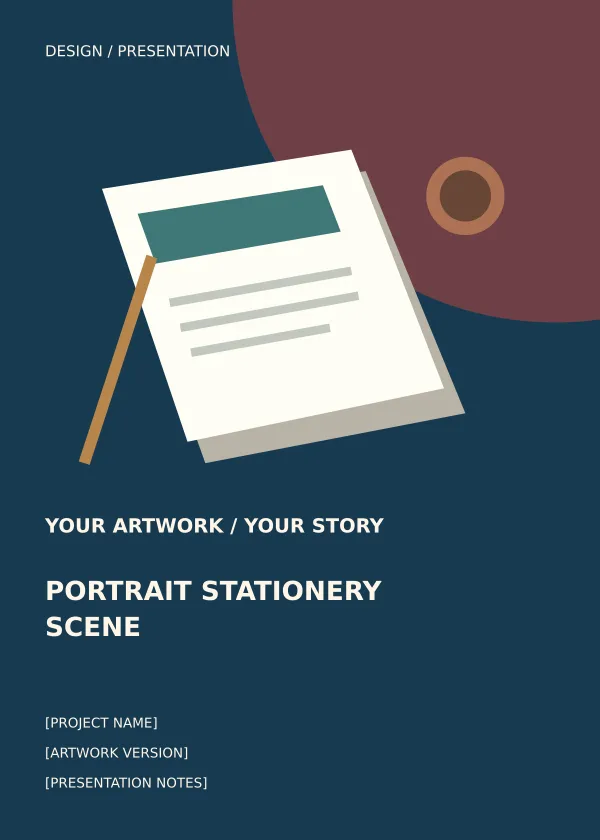
Portrait Stationery Scene
Option 1 provides the portrait stationery scene layout shown below. Download the Editable SVG and print PNG file, keep an untouched original and edit a copy for your own project. The preview is for comparing the supplied layout; use the download button to obtain the working file.
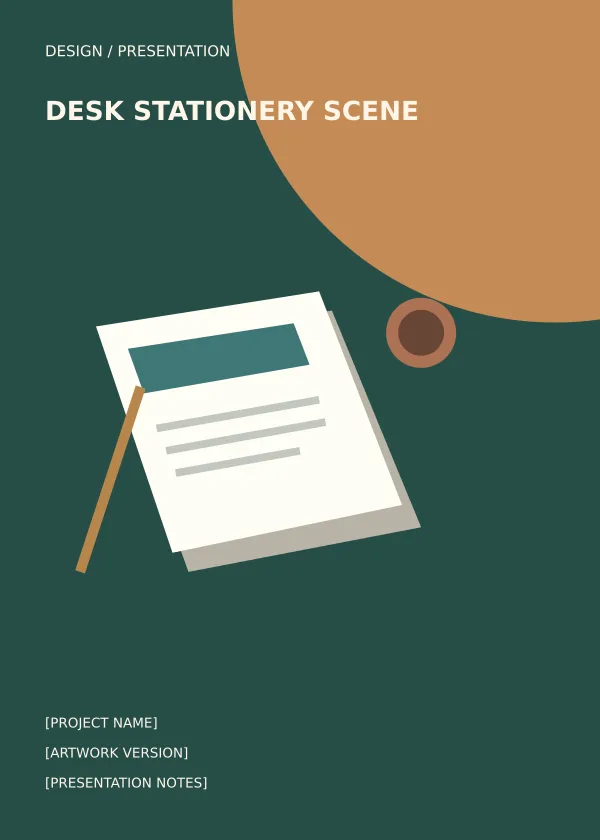
Desk Stationery Scene
Option 2 provides the desk stationery scene layout shown below. Download the Editable SVG and print PNG file, keep an untouched original and edit a copy for your own project. The preview is for comparing the supplied layout; use the download button to obtain the working file.
Related resources for the next step
Depending on your project, these related guides can support the work around this template: Free Company Profile Templates and PDF Examples, Memo Templates and Business Memorandum Example, Pull Tab Flyer Templates and Printing Guide. Choose the resource that matches the task you need to complete, and keep information consistent when you use more than one document or design.
Frequently asked questions
Are these Photoshop PSD mockups?
No. The downloads contain SVG scenes and PNG images. They do not include PSD layers or smart objects. Use a compatible vector editor to adjust the SVG composition.
Can I print directly from the mockup?
A mockup is a presentation image. Print from the original flat artwork prepared to the correct page size, margins and production settings, not from a perspective scene.
How do I add my letterhead?
Prepare the flat letterhead first, then place and transform it into the visible page area in a compatible editor. Remove the sample page marks and inspect the edges and proportions before export.