
Mail merge templates connect a reusable Word document to a list of recipients, allowing one layout to produce personalized letters or address labels. These two downloads include a Word invitation letter and a two-column address label sheet. The placeholders are genuine Word MERGEFIELD fields, and matching sample CSV data is supplied with each template. Connect your own cleaned recipient list, preview the results and produce a test document before printing or sending anything.
Choose the option that is closest to personalized invitations and address labels, then work through the editing guidance below. The previews show the supplied designs, including sample wording or field labels. They help you compare the layouts before downloading; the finished result will depend on the information and adjustments you add. Keep the original download as a starting copy and save your project under a separate name.
Compare the two downloads
| Download | Format | Starting point |
|---|---|---|
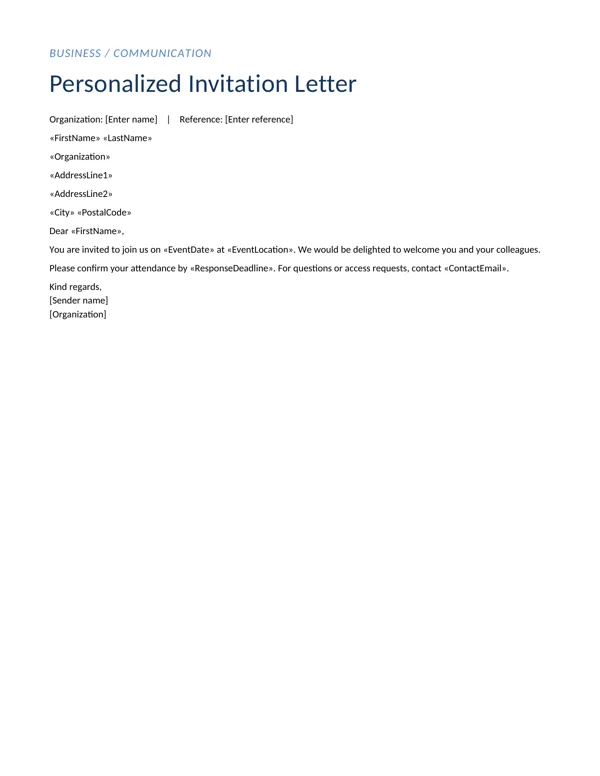
| Personalized Invitation Letter | Word DOCX and sample CSV in ZIP | Option 1: compare the preview and adapt the layout to your purpose. |
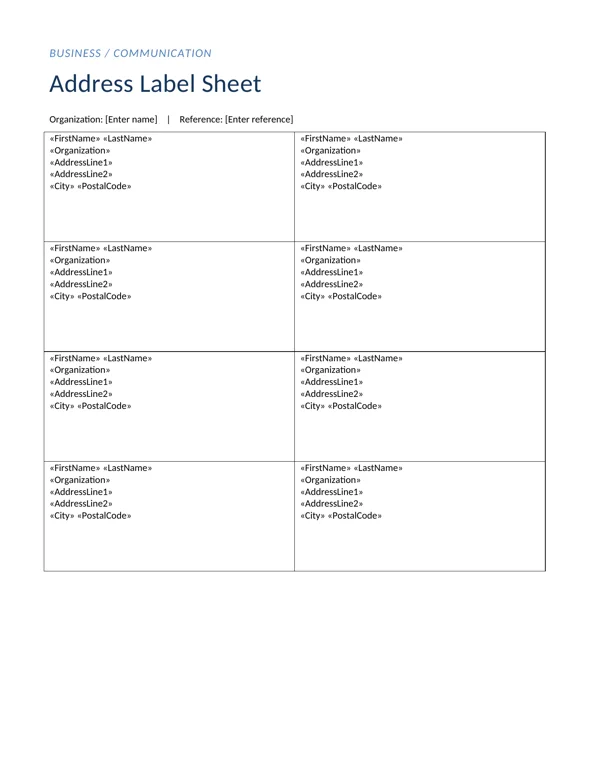
| Address Label Sheet | Word DOCX and sample CSV in ZIP | Option 2: compare the preview and adapt the layout to your purpose. |
Understand the document and the data source
Mail merge has two main parts: the document that stays mostly the same and the records that change for each recipient. A field such as FirstName is a reference to a column in the data source. It is not a command to guess a name or complete missing information. Keep one recipient on each row and use one header per column. The sample CSV shows the expected headers. Replace the fictional example record with your own authorized mailing list and keep postal codes as text when leading zeros matter.
Prepare the letter and label templates
The letter contains fields for the recipient, address and event details, along with ordinary editable wording for the invitation. Replace the sender information and adjust the message before merging. The label document is a generic two-column, four-row sheet. It is not calibrated to a commercial label product. Match the cell size and margins to your label stock, then configure successive-record handling through Word’s label merge workflow. Without a Next Record instruction in the appropriate places, several cells can repeat the same recipient. Always test on plain paper first.
Preview awkward records before finishing
A merge that looks right for the first recipient can fail on a later one. Preview long names, organizations with several words, missing address lines and records containing punctuation. Check that dates appear in the intended format and that an empty field does not leave an awkward greeting. Finish to a new document when you want to inspect all outputs before printing. If your goal is email, use an email merge workflow and verify recipient addresses separately; an address label template does not prepare a complete email campaign.
What to include and check
- FirstName and LastName
-
Keep first and last names in separate columns when you want a flexible greeting. Use the actual header names expected by the merge fields. Check records containing titles, initials or compound names rather than assuming that every person fits the same naming pattern.
- Organization
-
Use the organization column only where it is relevant to the correspondence. A missing organization should not make the address confusing. Preview recipients with long company names and adjust the available line length before generating a large batch of letters or labels.
- AddressLine1 and AddressLine2
-
Separate the first and second street-address lines so apartment or suite information stays intact. Do not move part of a street address into an unrelated field simply to make the preview fit. Confirm the complete address with the source record when something looks inconsistent.
- City and PostalCode
-
Keep postal codes in a text format when the source application might remove leading zeros. Include any country field your actual mailing list requires by adding it to both the data and document. Address conventions vary, so adapt the order to the destination.
- EventDate and EventLocation
-
Use the event fields for the actual occasion and location. Consistent column values make a repeated invitation easier to maintain, but different records can intentionally contain different events. Check the complete set so a copied old date is not merged into a new invitation.
- ResponseDeadline and ContactEmail
-
Use a realistic response deadline and a monitored contact address. The document can personalize these values, but it cannot verify whether an inbox exists. Read the finished invitation as a recipient would and confirm that the response instructions are understandable.
A practical example
A workshop organizer can keep one invitation letter and a spreadsheet containing each recipient’s name, organization and address. EventDate, EventLocation and ResponseDeadline provide the occasion details. After connecting the list, the organizer previews several records, including one with a long organization name and one with an empty second address line. The label sheet uses the same address fields, but its cells must be advanced to successive records before the final label merge is completed.
Clean the recipient list before connecting it
Remove blank rows that could become empty records and make the column headers consistent. Check for duplicate recipients when the same person appears under slightly different names. Keep an original copy of the data before sorting or correcting it. If several people maintain the list, agree which version is the approved source for this batch. A merge cannot tell whether a duplicate is intentional or whether an old address is still valid. Fixing the source once is usually safer than editing many completed letters after the merge.
Make a reliable test set
Create a small test list that includes a long name, a missing second address line and an organization name that wraps. Include a postal code with a leading zero if your real mailing list uses one. Preview every test record in the letter and label layout. For labels, verify that the sequence advances correctly across the page and continues to the next sheet. Print one plain-paper test and compare it with the label stock. Adjust cell dimensions and margins before using expensive adhesive sheets or producing a large mailing.
Keep the finished outputs separate
The template, recipient list and completed merged document serve different purposes. Keep them in separate clearly named files so a colleague does not print the unmerged source by mistake. Inspect the completed document for blank greetings, repeated records and page breaks. Store recipient information only where the responsible team can access it and use it for the intended correspondence. If you later reuse the template, reconnect the correct approved list rather than assuming the old data connection is still appropriate for the new occasion.
How to customize and finish the file
- Save an editable working copy. Open the Word document and save a separate copy for your organization. Read the complete mail merge template before entering information so you understand how the sections relate. Keep the original download available for future use. If your office uses another word processor, inspect the document carefully after opening it because table dimensions and line breaks can change between applications.
- Enter the real information. Replace the bracketed prompts and any example details with information approved for personalized invitations and address labels. Remove fields that do not apply instead of leaving unexplained blanks. Use clear labels and consistent names throughout the document. When several people contribute, ask one person to review the combined wording so an older instruction or duplicate section does not remain in the final copy.
- Test longer entries. Try a long name, a multi-line address or another realistic entry that takes more room than the sample. Inspect the resulting line breaks and table rows. Increase the available space when necessary rather than reducing the type to an uncomfortable size. Keep related information together on the page and make sure a section heading is not separated from the text it introduces.
- Review the complete document. Read the file from the perspective of administrators and small teams preparing repeated correspondence. Check what information is needed, what action follows and who handles questions. Confirm dates, contact details and organizational wording with the responsible person. The layout provides structure, but it cannot verify that the details you enter are correct or that the process behind the document is ready to use.
- Keep the source and approved output. Retain the editable Word version and create a fixed-layout copy only when your distribution process calls for one. Open the final output and inspect every page, including tables and any signature area. Give the file a descriptive version name. If the information changes later, update the source first and generate a new output so the editable and distributed versions remain consistent.
Download the two templates and view the previews
Personalized Invitation Letter
Option 1 provides the personalized invitation letter layout shown below. Download the Word DOCX and sample CSV in ZIP file, keep an untouched original and edit a copy for your own project. The preview is for comparing the supplied layout; use the download button to obtain the working file.
Address Label Sheet
Option 2 provides the address label sheet layout shown below. Download the Word DOCX and sample CSV in ZIP file, keep an untouched original and edit a copy for your own project. The preview is for comparing the supplied layout; use the download button to obtain the working file.
Related resources for the next step
Depending on your project, these related guides can support the work around this template: Free Contact List Templates and Organization Guide, Customer Information Sheet Templates and Examples, Memo Templates and Business Memorandum Example. Choose the resource that matches the task you need to complete, and keep information consistent when you use more than one document or design.
Frequently asked questions
Are the placeholders real Word merge fields?
Yes. The DOCX files contain MERGEFIELD instructions. Connect a matching data source and preview the merged values in Word. The supplied sample CSV uses the same field names.
Do the address labels match a particular label brand?
No. The sheet is a generic two-column, four-row layout. Set the dimensions for your actual label stock, configure successive records and test alignment on plain paper before using adhesive labels.
Why does one name repeat on every label?
Successive-record handling has not been set correctly. Use the label merge workflow and ensure the necessary Next Record instructions are present before completing the merge.