
These YouTube banner templates give creators two original channel-art designs: Modern Technology and Calm Lifestyle. Each ZIP contains an editable SVG master, a 2560 × 1440 PNG, a PDF reference and instructions. The sample channel name, topic line and upload schedule must be replaced before use.
Channel art introduces the identity and subject of a channel. It can help a visitor recognize the brand and understand the content, but it does not guarantee more views or subscribers. A readable name and accurate message matter more than a crowded banner with several unrelated promises.
The original post confused a central text region with the size of the whole banner. These downloads use the recommended full canvas and keep essential sample text in a conservative central region. Customize the SVG, export a new PNG and inspect the device crops in YouTube Studio before publishing it.
Download both designs | Read the editing guide | Frequently asked questions
Download the two original template packages
Each button downloads a ZIP archive containing the editable SVG master, PNG image, static PDF and instructions. Extract the archive before opening it. Edit the SVG in compatible vector software and export new images or PDFs after customization. The supplied PNG and PDF are rendered references, not fillable forms.
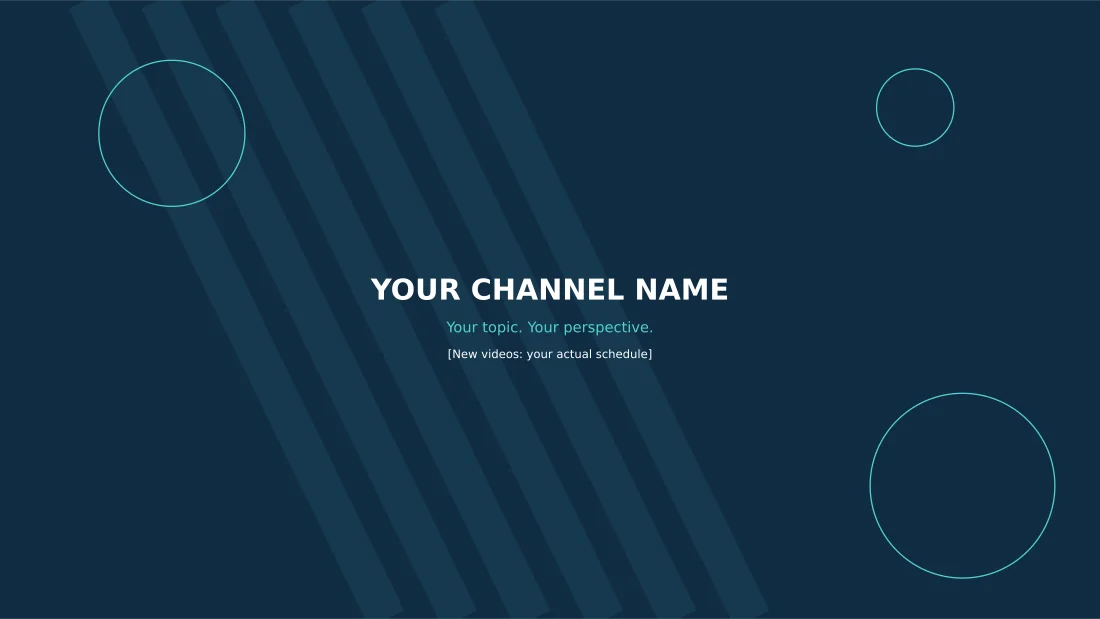
Modern Technology YouTube Banner
2560 x 1440 pixel banner with editable SVG text and a ready-to-customize PNG. Essential sample text sits in a conservative central region.
Package contents: one SVG master, one PNG image and one PDF reference, plus instructions. All placeholder wording must be replaced before use.
Download Modern Technology YouTube Banner (ZIP)
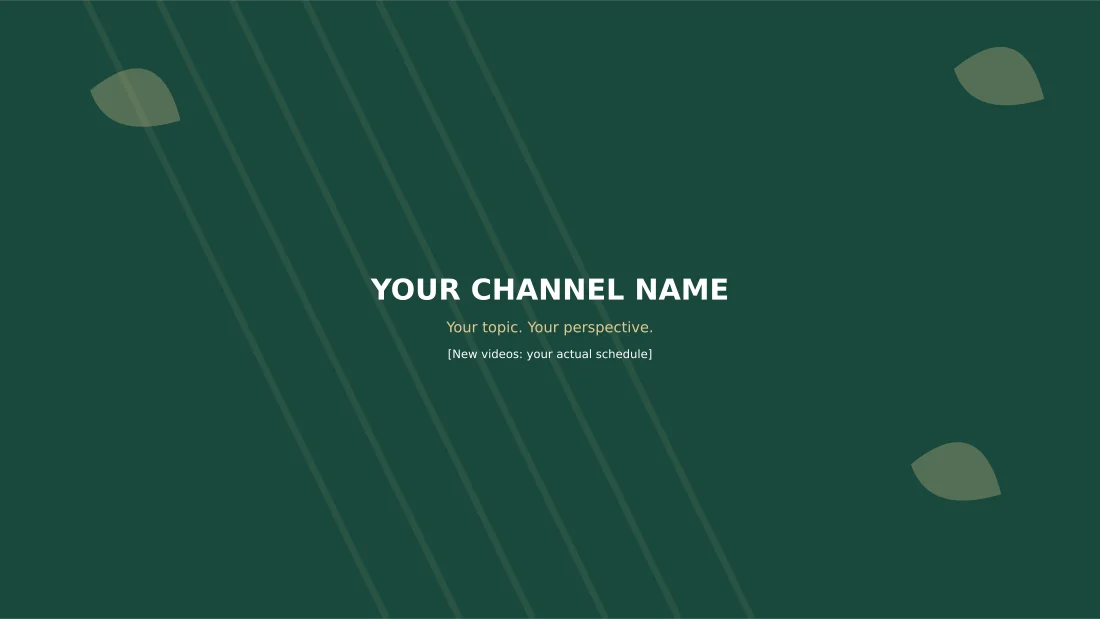
Calm Lifestyle YouTube Banner
2560 x 1440 pixel banner with editable SVG text and a ready-to-customize PNG. Essential sample text sits in a conservative central region.
Package contents: one SVG master, one PNG image and one PDF reference, plus instructions. All placeholder wording must be replaced before use.
Download Calm Lifestyle YouTube Banner (ZIP)
Choose a technology or lifestyle channel banner
The Modern Technology design uses a dark blue background, turquoise geometric details and a centered title. It is a useful starting point for educational, technology or practical how-to content. Change the name and topic line to describe the actual channel rather than leaving a broad placeholder.
The Calm Lifestyle design uses dark green, warm neutral accents and quieter shapes. It suits a creator who wants an understated visual identity. The structure is similar enough to keep the key information centered, while the palette and decorative details provide a different character from the technology version.
Choose the visual direction that matches the videos people will find on the channel. A banner creates an expectation, so it should not present a lifestyle identity when the library mainly contains technical tutorials. You can adapt either SVG with your colors, logo and wording without changing the underlying canvas dimensions.
Use the correct canvas and check device crops
YouTube’s current official guidance recommends a 2560 × 1440 banner, with a minimum upload size of 2048 × 1152 at a 16:9 ratio. It specifies a 1235 × 338 text-and-logo safe area at that minimum size and a file limit of 6 MB. Consult the official requirements when preparing a final upload.
The two original PNG files use 2560 × 1440 pixels. Their essential text is placed within a centered 1235 × 338 region as a conservative layout choice, rather than treating that region as the full image. Decorative graphics extend across the larger canvas. Keep the distinction between canvas dimensions and essential-content placement clear.
Different devices show different parts of the banner. A design that looks balanced on a full-canvas preview can lose edge content in a narrower view. Use the crop previews in YouTube Studio to check the channel name, logo and any schedule before publishing. The provided artwork cannot guarantee every future interface crop.
For the current dimensions, file limit and upload guidance, see YouTube’s official channel branding guide. This is the authoritative source for platform requirements. The template’s central placement is a design precaution; it is not a replacement for reviewing the actual upload preview.
For a wider brand introduction, compare our company profile templates.
What to put on a channel banner
Include the channel name or a recognizable authorized logo as the main element. A short topic line can explain what viewers will learn or see. Keep it specific: home energy explainers or practical cooking lessons communicates more than a vague statement such as the best videos online.
Add an upload schedule only if it reflects what you can maintain. A promise of daily videos can become misleading when the channel publishes less frequently. If the schedule is uncertain, remove that line and keep the topic message. The sample schedule is a placeholder, not a suggested commitment.
Avoid using the banner as a complete catalog of every subject or social account. A small number of meaningful elements is easier to read on a narrow screen. Contact information or detailed links may be better handled through the channel’s available profile features rather than placed in tiny text across the image.
Keep claims realistic. The banner can describe the content and identity, but it should not promise guaranteed results, earnings or expertise that the channel cannot support. If a topic changes, update the wording so new viewers receive an accurate introduction.
How to edit and export the SVG template
Extract the ZIP and open the SVG in compatible vector software. Replace the title, topic line and schedule, then check their combined width. The centered layout is designed for short wording. A long channel name may need two lines or a modest size adjustment, but should remain comfortably readable.
Change colors and graphic details while preserving contrast. Bright text against a dark background is easier to identify than a low-contrast combination. If you add a logo, use an authorized sharp source file and keep the important portion inside the conservative central region. Do not rely on a decorative element at the edge as the only brand identifier.
Export a new PNG at the full 2560 × 1440 dimensions. The SVG is the editable source; the PNG is the upload image. The PDF is a reference and is not a banner upload format. Editing the master does not automatically change the supplied PNG, so make a fresh export after each approved revision.
Check the exported file dimensions and file size before upload. The two starting PNGs are comfortably below the stated limit, but adding large photographs can increase the size. Use appropriate image compression while retaining clear text. Do not resize the full design to the central text region.
Organize your production work using daily planner templates.
Example: a practical education channel
Imagine a creator whose videos explain home energy systems. The banner can use the channel name as the main line and a short description such as Solar, batteries and practical energy guides. This tells a visitor what the content covers without claiming that a banner itself produces traffic.
If the channel has a reliable weekly schedule, add a brief accurate schedule line. If the publication pattern varies, omit the schedule and give the topic more breathing room. The technology layout provides a clear starting point, but the creator should adapt its colors and message to the existing video identity.
Check the title in the narrowest device preview and inspect it on a normal screen, not only while zoomed into the vector editor. A full-size design can hide how small a tagline looks after the crop is displayed on a phone. Remove secondary wording if it cannot remain readable.
Upload, review and keep the branding consistent
Open the channel branding controls in YouTube Studio and choose the customized PNG. Review the crop previews, make the available adjustments and publish only after checking the essential elements. The exact interface can change, so follow the current official instructions rather than relying on an old screenshot.
Compare the banner with the profile image and recent thumbnails. They do not need to look identical, but should communicate the same channel identity. A consistent name, palette and message helps readers recognize the connection. Avoid adding a new logo to the banner while leaving a conflicting old name elsewhere.
After publishing, inspect the channel on available devices and confirm that the displayed banner is the approved version. If the schedule or topic line becomes outdated, edit the master and export a new PNG. Keep dated final versions so a later revision does not accidentally restore obsolete wording.
Keep collaboration contacts together with contact list templates.
Avoid common channel-art mistakes
Do not confuse banner dimensions with thumbnail dimensions or a central safe-content region. These are different layouts for different purposes. The two downloads are full-size channel banners, while the smaller WebP images on this page are only previews and should not be used as the final upload.
Do not assume that an attractive design will increase subscribers on its own. The channel’s content, usefulness and viewer experience still matter. Use the banner to communicate the topic clearly and make the identity recognizable, then evaluate the broader channel rather than crediting every change in performance to the artwork.
Keep the editable source alongside the final PNG and instructions. If someone else updates the branding later, they should be able to locate the master and understand which text is current. A simple design with accurate information is easier to maintain than a crowded image whose original source has been lost.
Existing previews and original source references
The existing images below are retained as reference previews. Working source links open external pages with their own formats, prices or access conditions; they are not the two original download packages above. Unavailable source buttons have been removed so a preview is not mistaken for an accessible file.
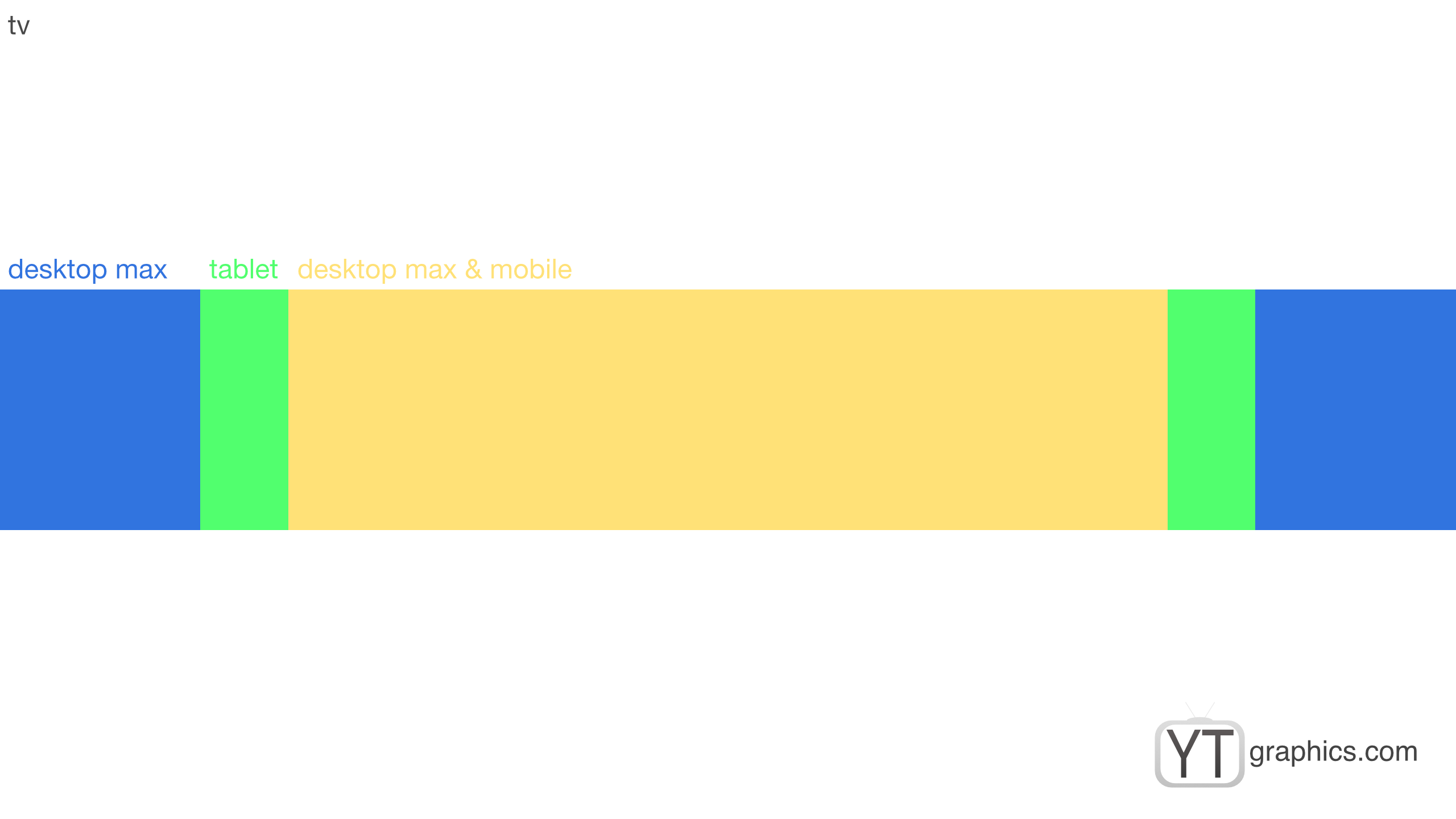
View original source 1 (external page). Check the source for the actual format and current access conditions.
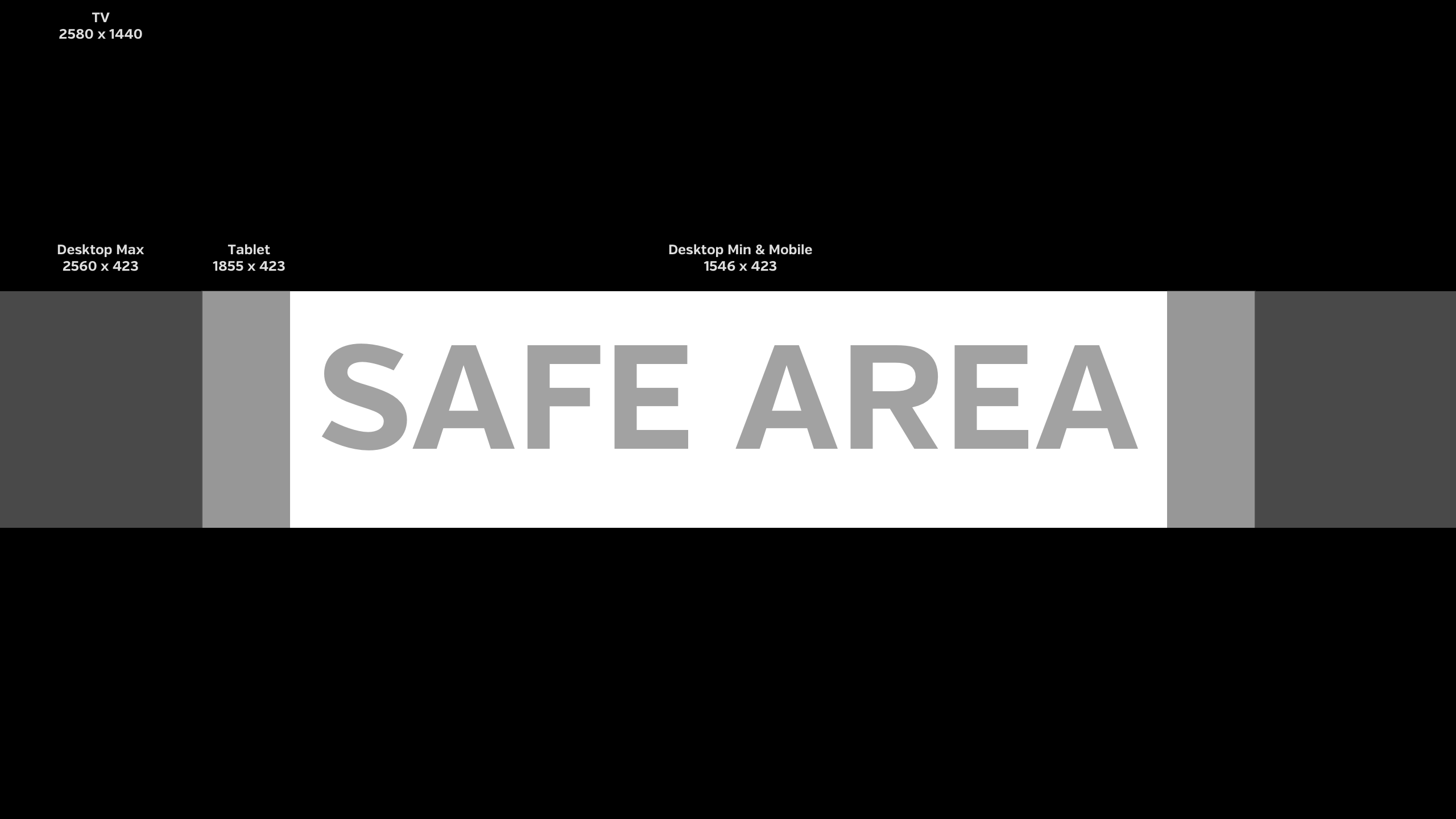
This preview’s original source returned an unavailable-page response. The original editable packages above provide direct downloads.
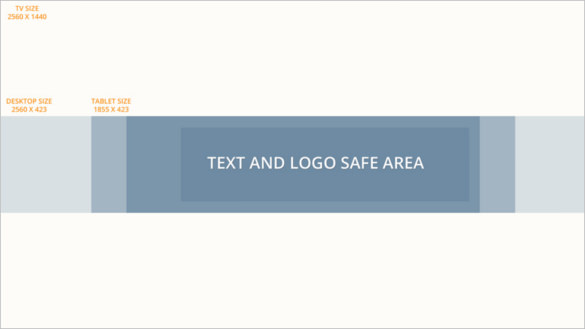
This preview’s original source could not be verified during the link check. The original editable packages above provide direct downloads.
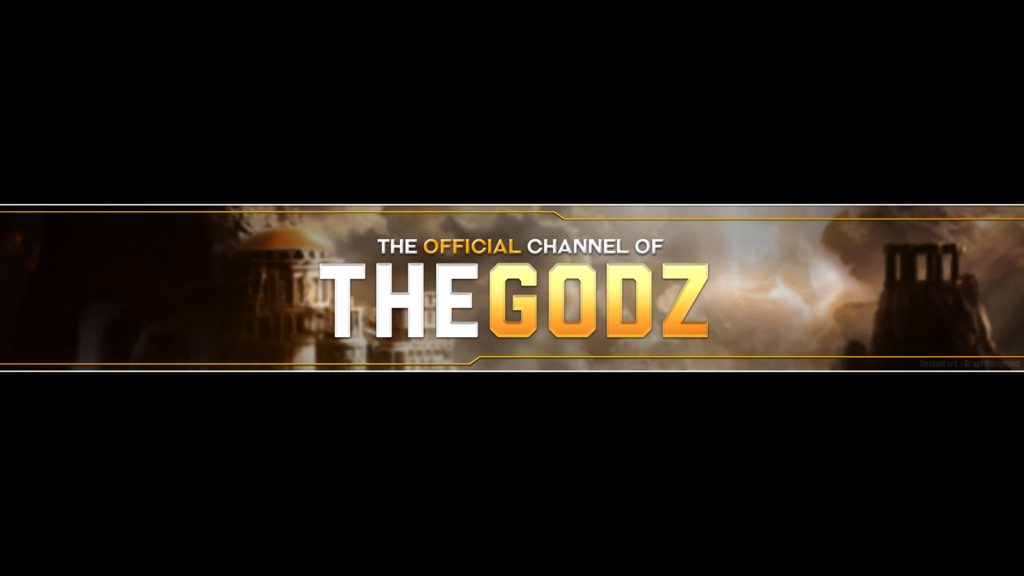
View original source 4 (external page). Check the source for the actual format and current access conditions.
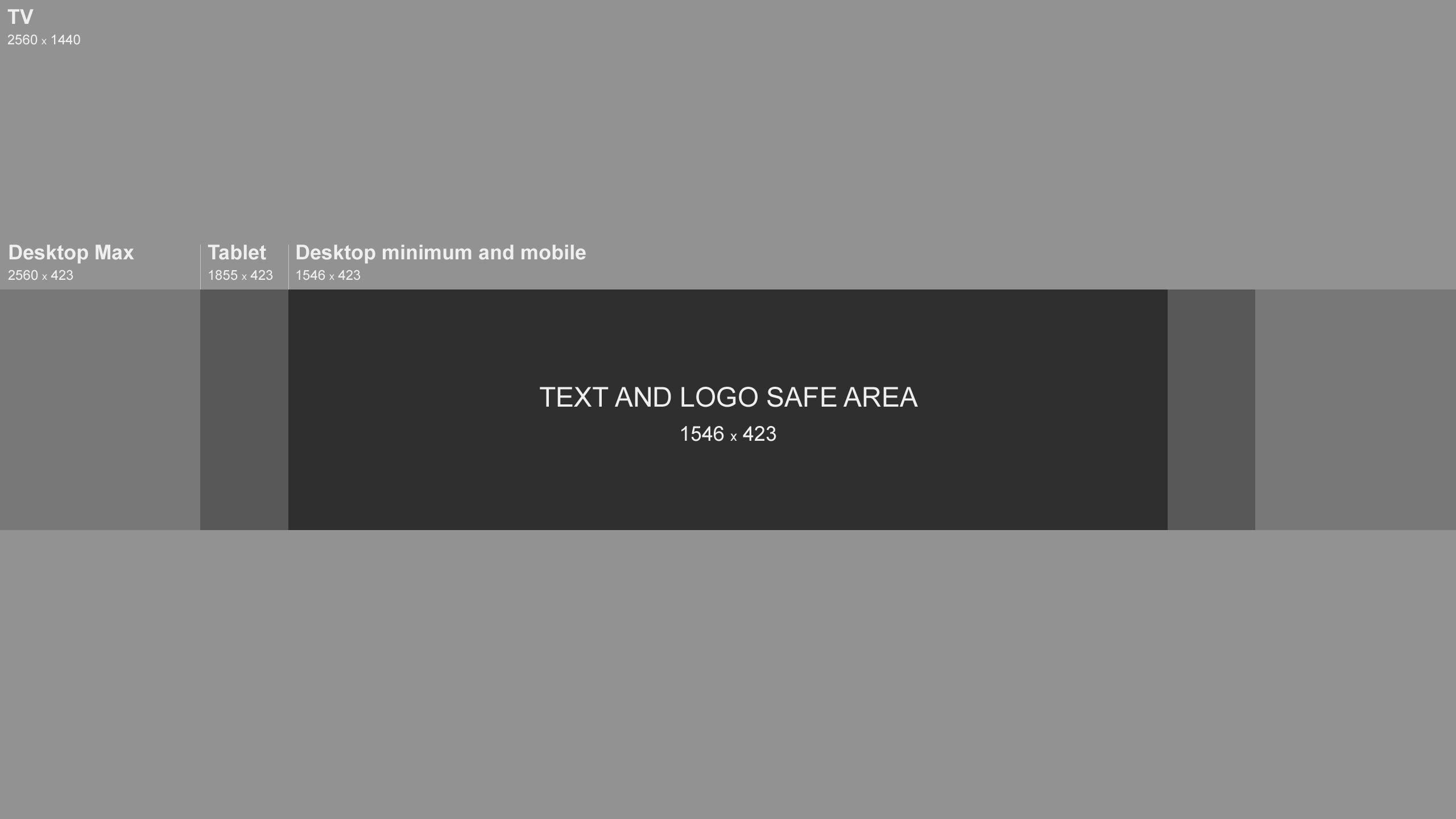
This original preview did not have a working download link attached. Use the original editable packages above for a direct file download.
Frequently asked questions
What size are the original YouTube banner PNGs?
Both are 2560 × 1440 pixels. The WebP images displayed in the article are smaller previews, not the full upload files.
Are these PSD files?
No. Each original package includes an editable SVG and a full-size PNG, plus a PDF reference and instructions. Use vector software to edit the source.
Can I upload the SVG or PDF directly?
Use the customized PNG for the channel banner. The SVG is the editable master and the PDF is only a reference.
Is all of the banner visible on every device?
No. Device views crop the image differently. Keep essential content centered and check YouTube Studio’s crop previews before publishing.
Do I need to keep the upload-schedule line?
No. Replace it with an accurate schedule or remove it. Do not leave the sample wording or promise a pattern you cannot maintain.
You must be logged in to post a comment.