
A photography flyer should help a potential client understand your service, see a suitable visual style and find a simple way to book. These two photography flyer templates cover portrait mini sessions and wedding photography inquiries. Each includes editable SVG artwork and a PNG image. The first emphasizes the session illustration and the second introduces the booking message at the top, giving you two different layouts to adapt to your photography business.
Choose the option that is closest to portrait sessions, wedding coverage or a limited booking campaign, then work through the editing guidance below. The previews show the supplied designs, including sample wording or field labels. They help you compare the layouts before downloading; the finished result will depend on the information and adjustments you add. Keep the original download as a starting copy and save your project under a separate name.
Compare the two downloads
| Download | Format | Starting point |
|---|---|---|
| Portrait Mini Sessions | Editable SVG and print PNG | Option 1: compare the preview and adapt the layout to your purpose. |
| Wedding Photography Booking | Editable SVG and print PNG | Option 2: compare the preview and adapt the layout to your purpose. |
Choose a service before choosing the design
A flyer that advertises every type of photography often becomes too vague to prompt a booking. Portrait sessions benefit from a specific date, duration and package. Wedding coverage usually needs an inquiry process because location, hours and deliverables vary. Use the first design for a defined session offer and the second for a broader wedding booking campaign. Change the service name before styling the page, then remove any placeholder that does not match the offer. The reader should understand the service without needing a second explanation.
Show relevant work and explain the package
The supplied artwork uses a camera illustration. You can retain it for a general announcement or replace it with your own portfolio image in the SVG. Choose a photograph that reflects the lighting, subjects and editing style a client can reasonably expect. Explain the package in practical terms: session duration, coverage, edited image count, delivery method and any print allowance. Avoid a long equipment list unless it answers a real client concern. Clear inclusions reduce the chance that an attractive flyer produces inquiries based on the wrong expectations.
Turn interest into a manageable booking process
A strong booking line tells people what to do and what happens next. Use one monitored email address or booking page, and explain whether the first step is a reservation or a consultation. If availability is limited, use a truthful date or slot count and update the flyer when the offer changes. Keep any deposit, rescheduling and delivery terms in the booking information. The flyer can summarize important conditions, but the client should receive the complete agreed package before paying or confirming a date.
What to include and check
- Session or service name
-
Name the service in familiar terms such as portrait mini sessions or wedding photography. Add a location or season only when it helps clients decide. Keep the headline focused on the service, rather than filling it with several unrelated photographic specialties.
- Date and availability
-
For a session campaign, show the confirmed date and explain how clients select a time. For wedding inquiries, identify the period for which you are taking bookings. Remove expired dates promptly so people do not contact the studio about an offer that has ended.
- Package inclusions
-
List the essentials that affect a booking decision. Include the time allowed, the number of edited images and the delivery method where these are fixed. If a package varies, say that the final scope is agreed after an inquiry rather than promising one universal package.
- Starting price and extras
-
Use the real price and currency, and explain what a starting price includes. Make important extras visible, such as travel beyond a defined area or additional editing. Avoid placing a very low headline price beside an illustration that implies a much larger package.
- Portfolio and booking contact
-
Send inquiries to a page or address that shows relevant work and explains the next step. If you use a portfolio link, confirm that the booking contact is easy to find there. A beautiful portfolio should still lead naturally to an inquiry.
- Location and delivery time
-
Give the session location or the area the studio serves. State the normal delivery expectation only if it is confirmed for that offer. Check that the booking terms explain how changes in location, weather or client availability will be handled.
A practical example
For a portrait mini-session campaign, advertise a confirmed date, a twenty-minute session, the number of edited images included and the actual booking price. State whether a deposit reserves the slot and where the session takes place. Put the booking address beside the call to action. For a wedding campaign, replace the fixed session promise with a consultation invitation and a clear starting package description. The two services require different details even when they share the same studio identity.
Keep the portfolio and the offer consistent
A photograph used to promote mini sessions should reflect the kind of result available within the advertised session. An elaborate commercial shoot can create the wrong expectation for a short portrait appointment. Choose examples that represent the actual lighting, setting and editing approach. If a photograph includes a client, confirm you have permission to use it for promotion. Check that the final crop does not obscure the subject or put the booking line across a face. An honest visual example gives a client better information than a dramatic image unrelated to the package.
Separate inquiries from confirmed bookings
Explain the step that turns interest into a reserved date. A message asking about availability is different from a confirmed appointment. Your booking process should identify the agreed service, date, price and any deposit before the client relies on the reservation. The flyer only needs the important next step, but the information behind it should be complete. If the promotion generates more inquiries than available sessions, update the availability message promptly. Keep a record of which flyer version a client saw so you can explain any package changes clearly.
Plan for the formats clients actually use
Many clients will first see the flyer on a phone. Make the service and booking contact recognizable at that size, even if the printed version contains more detail. A square crop may need a shorter headline and a smaller illustration. A print version may need a clearer address and a visible business name. Export each format deliberately rather than letting a platform crop the portrait design automatically. Open the posted image after upload to make sure compression has not made small text unreadable or removed the bottom information block.
How to customize and finish the file
- Start with the source file. Download the pack for your chosen photography flyer design and extract it. Keep the SVG and PNG together, but use the SVG when you need to change individual elements. Open a working copy in a vector editor that supports SVG. Confirm that the text, shapes and page size display correctly before making changes, rather than editing a screenshot of the preview.
- Replace the content first. Prepare the real information for portrait sessions, wedding coverage or a limited booking campaign before adjusting the decoration. Work through the fields described above and replace the sample wording. If a field does not apply, remove it and close the gap deliberately. Review the content as one message so an old date, example contact or unrelated heading does not remain in an otherwise updated design.
- Adjust spacing and visual balance. Use the longest real line of text to test the layout. Increase the text area or shorten the wording before making the font too small. Keep a clear difference between the headline and supporting information. If you move a decorative group, check that it does not cover essential content. Maintain proportions when resizing artwork so circles, illustrations and logos do not become stretched.
- Export for the actual destination. Choose the output dimensions for the place where the design will be used. Export a new PNG for ordinary image sharing, or follow the printer’s specified file requirements for a printed job. A source file and an export serve different purposes; retain both. Do not assume that a social platform, email client or print service will preserve your original crop and spacing automatically.
- Inspect the finished result. Open the exported file outside the editor and inspect it at normal viewing size. Check the headline, important details, contact information and edges. Ask someone unfamiliar with the project to explain what they think the design communicates. If their answer differs from the intended portrait sessions, wedding coverage or a limited booking campaign, revise the information hierarchy before distributing it. Save the approved version with a descriptive name so it is easy to identify later.
Download the two templates and view the previews
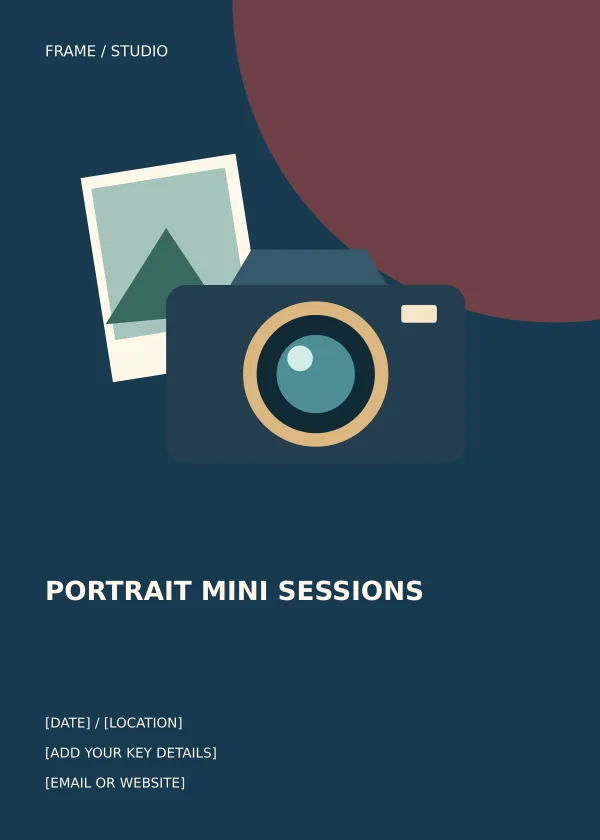
Portrait Mini Sessions
Option 1 provides the portrait mini sessions layout shown below. Download the Editable SVG and print PNG file, keep an untouched original and edit a copy for your own project. The preview is for comparing the supplied layout; use the download button to obtain the working file.
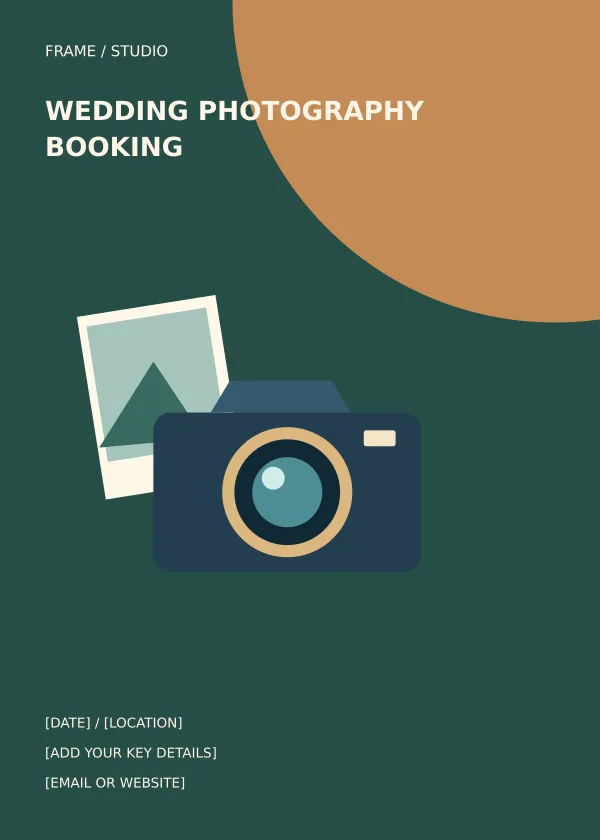
Wedding Photography Booking
Option 2 provides the wedding photography booking layout shown below. Download the Editable SVG and print PNG file, keep an untouched original and edit a copy for your own project. The preview is for comparing the supplied layout; use the download button to obtain the working file.
Related resources for the next step
Depending on your project, these related guides can support the work around this template: Pull Tab Flyer Templates and Printing Guide, Customer Information Sheet Templates and Examples, Cash Receipt Templates and Filled-In Example. Choose the resource that matches the task you need to complete, and keep information consistent when you use more than one document or design.
Frequently asked questions
Can I replace the camera illustration with my photos?
Yes. Edit the SVG and insert your own portfolio images. Use photographs you have permission to publish, and check the crop so the subject and important details remain visible.
Should a photography flyer include prices?
Include a price when the package has a clear scope. For variable wedding coverage, a carefully explained starting price or a consultation invitation may be more suitable than a price without context.
Are the files ready to send to a printer?
They provide editable artwork and a high-resolution PNG. Set the physical print size, confirm bleed and color requirements with the printer and approve a proof before ordering a full run.