
These photo album templates provide two original page layouts for arranging photographs and preserving the details behind them. Choose a Landscape Story page with one main image and two supporting frames, or a Four-Photo Journal page with individual captions. Each package contains an editable SVG, PNG, PDF reference and instructions.
A photo album works best when the images tell a clear story. A wedding, family holiday, birthday or client project may need different sequences, but each benefits from thoughtful selection and readable captions. The templates organize the page; they do not automatically select photographs, import a collection or create a bound album.
The download previews use original placeholder artwork to show where your photographs belong. Remove that artwork and position your own authorized pictures in a compatible vector editor. Save the high-resolution originals separately and export a new PNG or PDF after completing the layout. The supplied PDF is a static reference, not a fillable photo form.
Download both designs | Read the editing guide | Frequently asked questions
Download the two original template packages
Each button downloads an original ZIP package. Extract it before opening the files. The graphic packages contain editable SVG masters, PNG images, static PDFs and instructions. Edit the SVG and export new versions; the supplied PDF is not fillable.
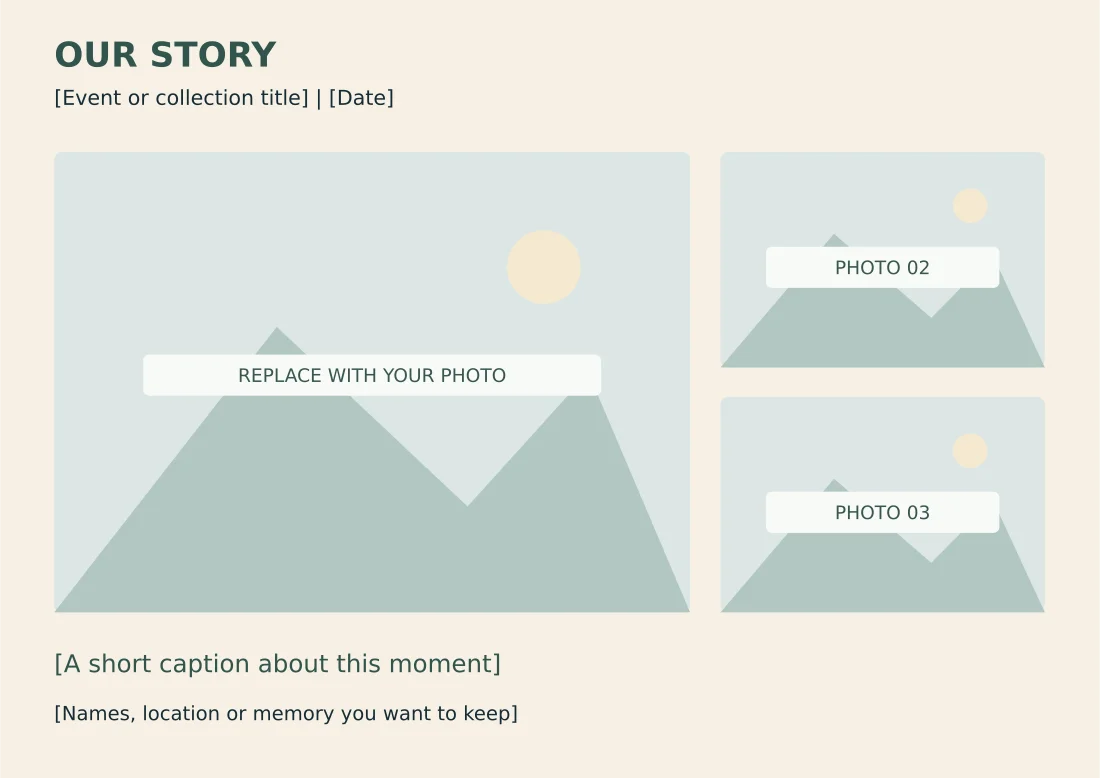
Landscape Story Photo Album Page
A4 landscape album page with one large photograph area, two detail frames and caption fields.
Package contents: one SVG master, one PNG image and one PDF reference, plus instructions. All placeholder wording must be replaced before use.
Download Landscape Story Photo Album Page (ZIP)
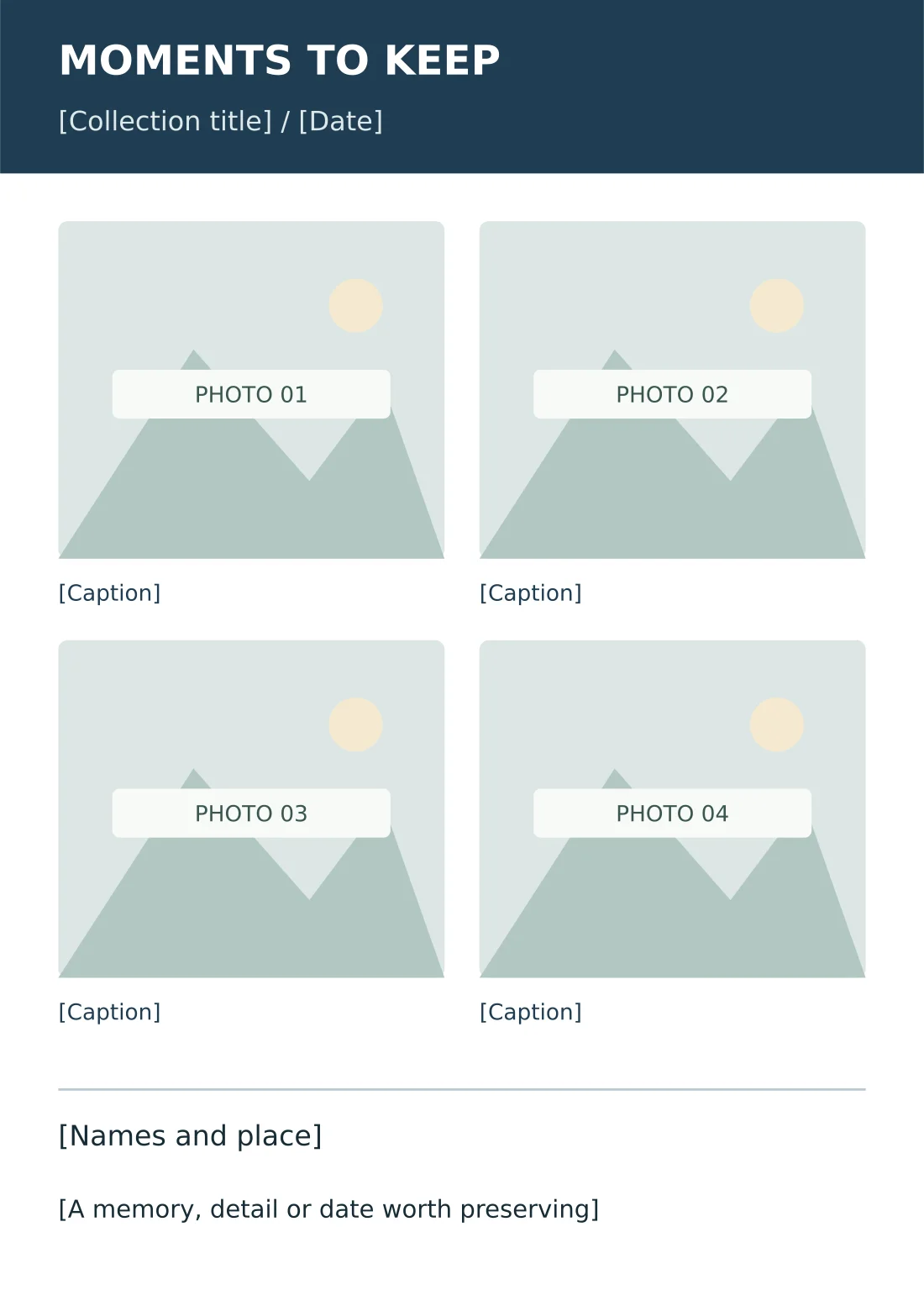
Four-Photo Journal Album Page
A4 portrait page with four photograph areas, individual captions and a memory note.
Package contents: one SVG master, one PNG image and one PDF reference, plus instructions. All placeholder wording must be replaced before use.
Download Four-Photo Journal Album Page (ZIP)
Choose a landscape story or four-photo journal page
The Landscape Story design is an A4 landscape page with one large photograph area and two smaller detail frames. It is useful when one image should establish the scene and two others add context. The caption and memory fields underneath give room for names, location or an explanation that may not be obvious from the images.
The Four-Photo Journal design uses an A4 portrait page with four image areas, separate captions and a note section. It suits a short sequence of related moments or a page where several people or details deserve similar attention. The vertical layout creates a different reading pattern from the large-image landscape page.
Choose the structure that fits the photographs rather than forcing every group into one layout. A wide group photograph may suit the story page, while four close details may work better in the journal. The frames are design guides, not automatic replacement fields. You must place and crop images through your editing software.
Plan the album before arranging photographs
Define the purpose and audience of the album. A personal family keepsake can include informal moments that would not belong in a professional portfolio. A client album should follow the agreed subject and delivery expectations. This first decision helps you select images and captions instead of using every available photograph.
Choose a simple sequence. Chronological order is useful for an event or journey, while a thematic sequence can group people, places or stages of a project. Give each page a clear role in the story. Avoid repeating several nearly identical photographs unless the repetition explains an important change.
Select a small group of strong images before opening the template. Look for a main scene, supporting details and a natural connection between them. Keep rejected or unused files in the original collection rather than deleting them simply because they do not fit the current album page.
Gather names, dates and location information while it is still easy to confirm. A picture may remain recognizable now but become difficult to identify years later. Keep uncertain details marked for review. A confident-looking caption with an incorrect name can be less useful than a brief accurate one.
Decide whether the album will be viewed digitally, printed as loose pages or sent to a specialist album producer. The intended output affects image resolution, margins and binding preparation. These downloads are individual page templates, not a complete printing specification for every album vendor.
Plan the sorting and editing stages with daily planner templates.
How to add photographs to the editable SVG
Extract the ZIP and open the SVG in compatible vector software. Save a working copy with the project name and page number. Select and remove the placeholder shapes and their labels from the area you want to use, then place your photograph in the intended position. Use the editor’s crop or clipping tools as appropriate.
Resize photographs proportionally so faces and objects do not stretch. A frame may have a different shape from the original image, so cropping can be necessary. Check what is removed from the edges before accepting the crop. Important faces or details should not disappear simply because the frame looks balanced.
Keep the source image at sufficient resolution for the intended output. A small social-media image may look acceptable on a phone while becoming soft when enlarged on an A4 page. Inspect the final exported page at the size it will be used. The template cannot create detail missing from a low-resolution source.
Replace the title, dates, captions and memory note after placing the photographs. Longer wording may need a line break or a shorter sentence. Keep the type readable and leave breathing room around it. Do not shrink an important caption until it becomes decorative text that cannot be comfortably read.
Export a new PNG or PDF from the edited master. The files supplied in the package do not change when the SVG is modified. Keep the master and final export together, and preserve the original photographs in a separate folder so you can make a different crop or layout later.
Write captions that add useful context
A caption can identify the people, place or moment without repeating what is obvious in the picture. At the lake after the morning walk provides more context than family photo. Use the level of detail the audience needs and keep personal information appropriate to how widely the album will be shared.
For an event album, dates and names can help readers follow the sequence. For a project portfolio, a caption can identify the project and your actual role. Avoid describing someone else’s work as your own. A clear short explanation is more credible than an exaggerated claim added to make the page feel important.
If you are preparing an album for someone else, confirm names and sensitive details with the appropriate person before finalizing. Do not assume that every image in a shared folder is approved for public use. A personal keepsake and a public promotional album may require different selections.
Keep the caption style consistent across pages. Use similar date wording, capitalization and naming conventions so the album feels coherent. A small style decision made at the beginning can prevent repeated corrections when the collection grows. Consistency should support the story rather than make every caption identical.
Keep the people who can confirm names and captions organized using contact list templates.
Example: a family trip story page
Imagine a page about one afternoon of a family trip. The large frame can hold a scene showing the group and location. The smaller frames can show a detail from the place and a candid moment. A short caption identifies the destination and date, while the memory field records one detail the family wants to remember.
This selection creates a clear relationship between the three images. It is more focused than filling the page with unrelated pictures from several days. If all the important photographs are portrait-oriented, use the journal layout or adapt the story frame rather than stretching them into a wide shape.
Before printing, ask whether the page still makes sense to someone who was not present. Names, place and sequence should be understandable where they matter. The goal is to preserve a meaningful record, not to fill every empty space with another photograph.
Review printing, binding and final exports
Print one proof of a completed page. Check the photographs for softness, the captions for readability and the edges for unintended cropping. Use the intended paper size and confirm scaling. A pleasing screen preview does not show exactly how the paper, printer and lighting will affect the result.
If the pages will be bound, ask the producer how much inner margin, bleed or safe space is needed. The supplied templates are not guaranteed production files for a particular album service. Adapt them to that service’s specifications rather than assuming that a standard A4 page will fit every bound product.
Review the complete sequence after adding several pages. Check for repeated images, missing names and inconsistent dates. Keep one approved final set instead of mixing early drafts with finished pages. A numbered file structure makes it easier to assemble the intended order.
Archive the editable masters, final exports and original photographs together with clear folder names. This makes future reprints and corrections easier. If the album is shared online, use an appropriate copy for that purpose while keeping the higher-quality originals available for later use.
For commissioned albums, organize client details with customer information sheets.
Existing previews and original source references
The existing images below are retained as reference previews. Working source links open external pages with their own formats, prices or access conditions; they are not the two original download packages above. Unavailable source buttons have been removed so a preview is not mistaken for an accessible file.
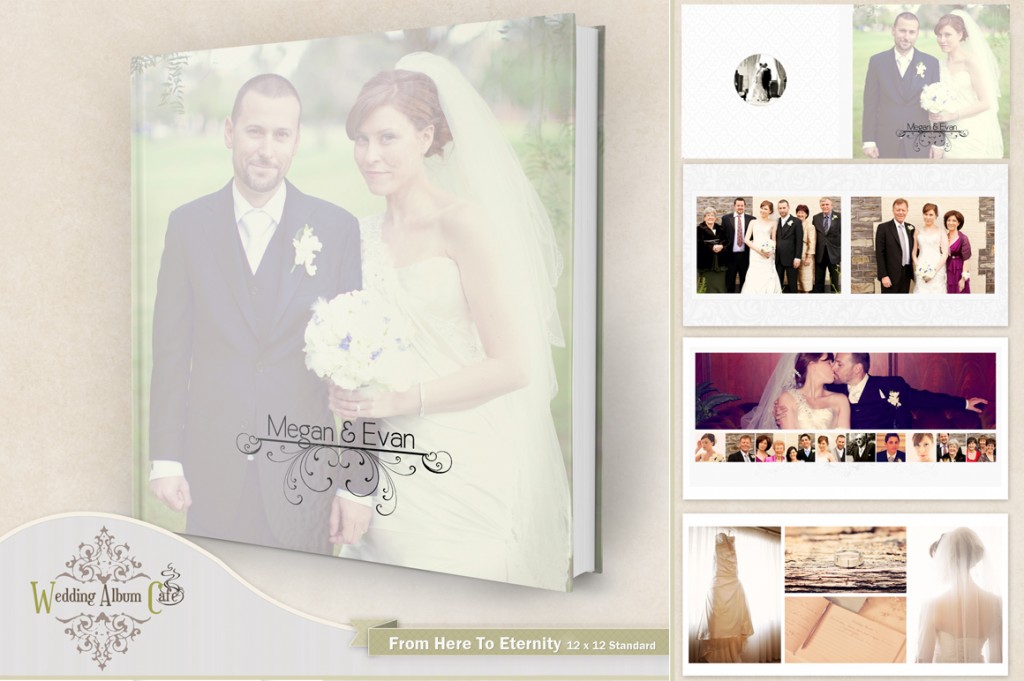
This preview’s original source could not be verified during the link check. The original editable packages above provide direct downloads.
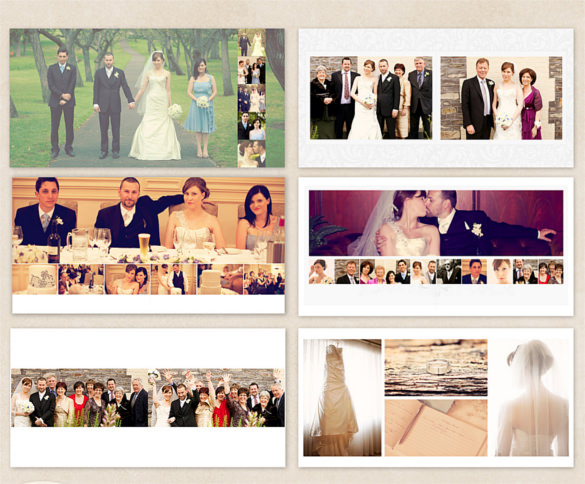
This original preview did not have a working download link attached. Use the original editable packages above for a direct file download.
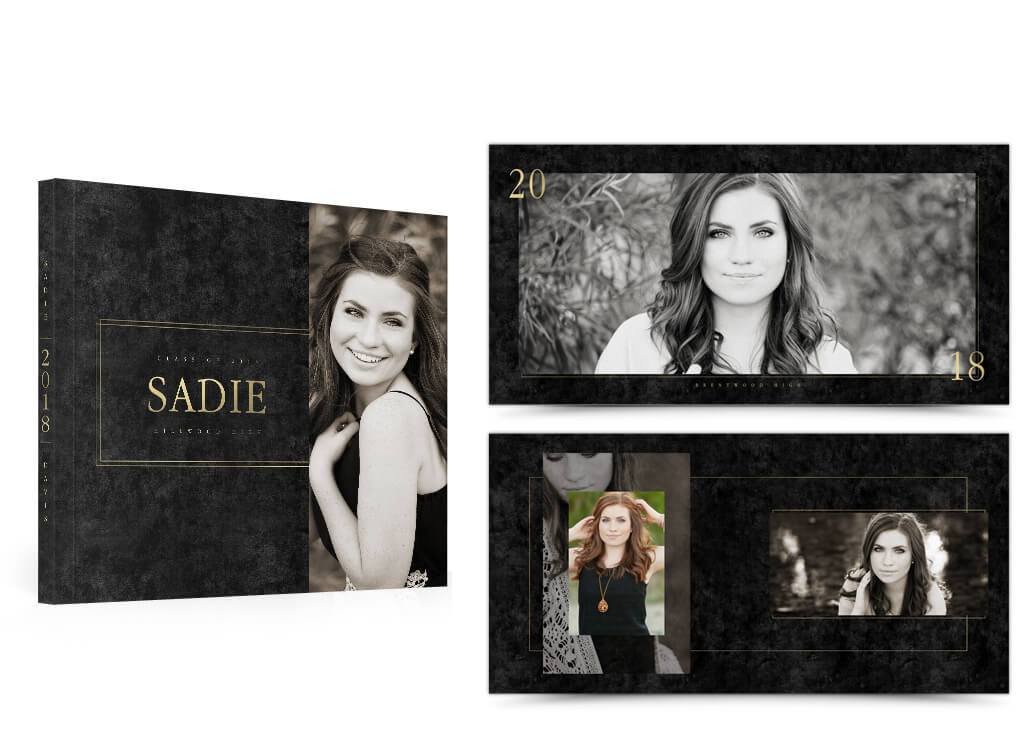
View original source 3 (external page). Check the source for the actual format and current access conditions.
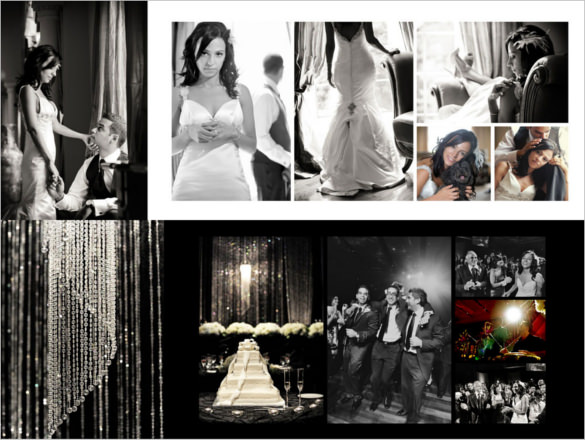
This preview’s original source returned an unavailable-page response. The original editable packages above provide direct downloads.
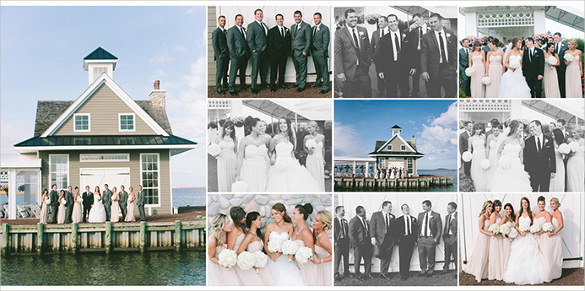
View original source 5 (external page). Check the source for the actual format and current access conditions.
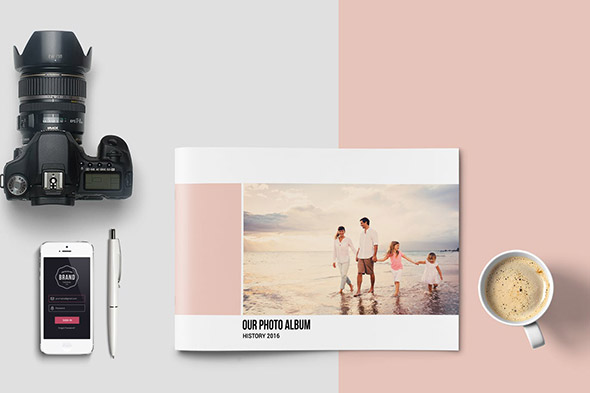
This preview’s original source returned an unavailable-page response. The original editable packages above provide direct downloads.
Frequently asked questions
What do the photo album downloads contain?
Each original ZIP contains an editable SVG page, PNG, static PDF and instructions. One layout is A4 landscape with three image areas; the other is A4 portrait with four.
Do photographs insert automatically?
No. Remove the placeholder artwork and place or crop your images in compatible vector software. The downloads are editable layouts, not automated album applications.
Are the templates PSD or InDesign files?
These originals use SVG masters. The retained legacy previews may point to third-party products with different formats and access conditions.
Can I add more pages?
Yes. Duplicate the working master and give each page a clear filename. Adjust the sequence, captions and photographs for that page.
Are they ready for every album printer?
No. Check the producer’s bleed, binding, margin and page requirements. The supplied PDFs are reference pages rather than universal production specifications.
You must be logged in to post a comment.